
Idea Statica
Steel
Steel overview
Connection design
Member design
Parametric design
Steel case studies
Concrete
Concrete overview
Walls and D-regions
Anchoring design
Concrete case studies
BIM & Workflows
BIM Overview
Supported integrations
Checkbot
Viewer
APIs
Support & Learning
Support Center
E-learning & certification
Blog
Downloads & Licensing
Pricing
Plans
Free community tool
Enterprise customers
Students & educators
How much will you save?
Company
About us
Contact
Research & development
Authorized resellers
Meet our customers
14-Day Trial
Support CenterKnowledge BaseSetting up parametric design with Developer Tab
Shared Preferences across the whole tool range
Project settings
How to change units in IDEA StatiCa
How to change the design code of Connection project
Keyboard shortcuts (hotkeys) in IDEA StatiCa apps
3D presentation: Scene options
Setting up parametric design with Developer Tab
The coherent icons and ribbon of IDEA StatiCa Connection
Codes and standards supported in IDEA StatiCa Steel
Decimal separator and date format according to Windows Regional Settings
Parametric design for steel connections
Parametric design in Connection - all documentation
Parameters are useful for everyone
Setting up parametric design with Developer Tab
UX features in parametric design
Parametric templates in Connection Library
Parametric design options for IDEA StatiCa Connection
Developer mode
SteelConnection designKnowledge baseIDEA Open Model (API)v23.0

Setting up parametric design with Developer Tab

This article is also available in
ENCSDEESITNL

Many users prefer modeling and analyzing connections through parameters and commands instead of by manual input. It is easy to deal with parametric design in IDEA StatiCa, giving users greater freedom to explore additional functionality.

It is not necessary to manually modify the IdeaConnection.exe.config file in the root folder, which would be time-consuming and inconvenient. 

Thanks to the raising numbers of advanced users of IDEA tools, it is enough to just enable the Developer mode in Project tab/Preferences.
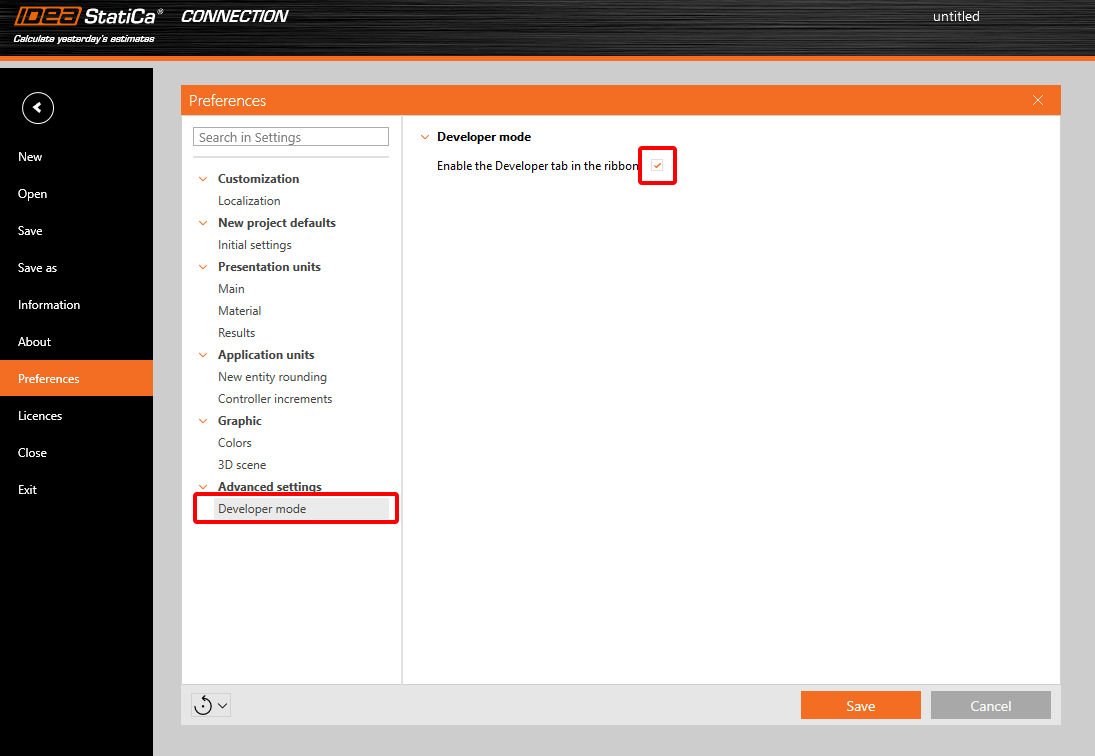
Set up

This brings the user a new tab in the main toolbar, with additional features.

Export IOM:

  • Model – export the model data through IOM (Idea Open Model) in .xml format
  • Conn Data – export the model data through IOM in .json format

Template:

  • Save as – the user can save the connection model properties in the Idea Template (.IdeaTemp) format 
  • Apply – the user can apply Idea Template format to the whole Connection model (all members are involved)
  • Simple – the user can apply Idea Template format to a selected part of the Connection model (only selected members are involved)

There is also a property grid window part-displayed with two separate tables:

Parameters table – this provides the user with the set of IOM parameters that are available to use for parametric design

Model parameters – this allows joining the specific IOM parameter with the specific Model parameter of the current Connection project

Other improvements are described in the UX Improvements of Parametric design article.

For more information about these features, please visit our GitHub page
https://github.com/idea-statica/ideastatica-public/wiki/Developer-Mode-Parameters#parameter-input
https://github.com/idea-statica/ideastatica-public/wiki/Reference-Guide-Expression-Parameters

This feature can be found in the applications Connection and Member.

Available in both Expert and Enhanced editions of IDEA StatiCa Steel.

Download new version

Subscribe to our newsletter

Company

  • About us
  • Partnerships
  • Job openings
  • Patented technology for structural engineers

Resources

  • Customer projects
  • Case studies
  • IDEA StatiCa Connection Library
  • Concrete verifications

Legal

  • IDEA StatiCa END USER LICENSE AGREEMENT
  • Privacy policy
  • Terms of Services – IDEA StatiCa Viewer
  • Licensing

Help

  • Contact
  • Get price quote
  • IDEA StatiCa Specialists
  • Download the latest version
FacebookInstagramLinkedInYouTube

© IDEA StatiCa 2009-2026

Trusted and used worldwide by engineers, fabricators & consultants.